
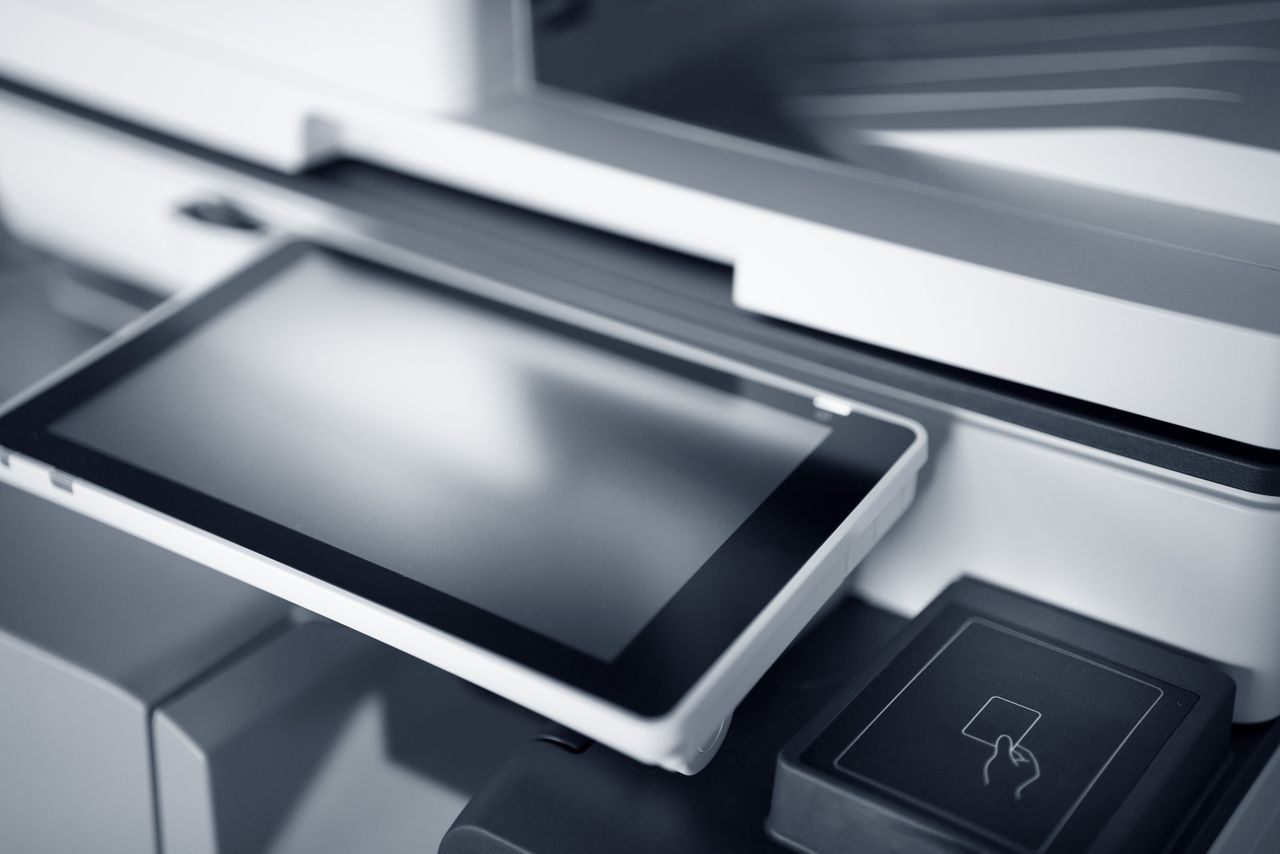
Your printer is sitting there.
The lights are on. There’s paper in it. Nothing looks particularly wrong.
You click Print and Windows comes back with:
Printer Offline.
This is one of those wonderfully unhelpful computer messages.
“Offline” doesn’t necessarily mean the printer is switched off. Usually, it just means your computer can’t communicate with it.
And there are a few very common reasons why.
First thing: don’t start changing everything
When a printer stops working, it’s tempting to:
- Remove the printer from Windows
- Reinstall all the software
- Reset the printer
- Start changing Wi-Fi settings
- Turn everything off and hope for the best
Sometimes that just creates a second problem.
I normally start with the simple question:
Can the printer still see your home network?
If it can’t, there’s not much point troubleshooting Windows yet.
Has your Wi-Fi changed recently?
This is a big one.
If you’ve recently:
- Changed internet providers
- Had a new NBN modem installed
- Replaced your router
- Changed your Wi-Fi name or password
- Had someone reset the modem
…the printer may still be trying to connect to your old Wi-Fi.
Your laptop might be happily connected to the new network while the printer has absolutely no idea anything changed.
From your computer’s point of view, the printer has disappeared.
So it gets labelled Offline.
If other devices are also having trouble connecting, it may be worth looking at your home network as well. No Stress Tech can help with Wi-Fi and internet problems as part of our in-home support.
Try the boring fix first
Yes, I’m going to say it.
Turn it off and back on again.
But do it properly:
- Turn the printer off.
- Wait about 20–30 seconds.
- Turn it back on.
- Give it a minute or two to reconnect.
- Try printing again.
If you’ve recently had internet problems, restarting the modem/router can also help.
It sounds ridiculously simple, but there’s a reason IT people keep suggesting it.
Check the print queue
Sometimes the printer itself is fine.
There’s just an old print job stuck in Windows.
You might have clicked Print six times because nothing happened, and now Windows has six copies of the same document sitting there waiting.
Open your printer queue and have a look.
If you see old or failed jobs:
- Cancel them.
- Wait for the queue to clear.
- Try printing one simple document again.
Also check that Pause Printing or Use Printer Offline hasn’t accidentally been enabled.
Can another device print?
This is one of my favourite quick tests.
If you have another laptop, phone or tablet that’s already set up with the printer, try printing from that.
If nothing can print
I’d start looking at the printer or its network connection.
If your phone prints but your computer doesn’t
Great.
We’ve already narrowed the problem down considerably.
The printer is probably connected to the network and working. The issue is more likely to be on that particular computer.
Troubleshooting gets much easier once you work out where the problem actually is.
Sometimes the printer’s address has changed
This one’s a little more technical, but I see it reasonably often.
A network printer gets an address from your router so computers can find it.
Something changes—the router gets restarted, replaced or reconfigured—and the printer ends up with a different address.
Your computer can still have the old printer installed, but it’s effectively knocking on the wrong door.
The printer is sitting three metres away, switched on and perfectly healthy.
Windows still says:
Offline.
That’s one of those situations where repeatedly reinstalling the printer may appear to fix the problem, but it’s better to work out why the connection was lost in the first place.
And sometimes printers are just… printers
I’ve worked with technology for years and printers still manage to come up with new ways of being difficult.
You can have:
- A perfectly good Wi-Fi connection
- Plenty of ink
- Plenty of paper
- No warning lights
- A computer that was printing yesterday
…and today it simply refuses.
Usually there is a reason. Finding it is the fun part.
The important thing is not to start changing ten different settings at once. Check one thing, test it, then move to the next.
My quick printer checklist
If your printer suddenly shows as offline, I’d check these first:
- Is the printer actually connected to Wi-Fi?
- Has your modem, router, Wi-Fi name or password recently changed?
- Does restarting the printer fix it?
- Are there old jobs stuck in the print queue?
- Is Use Printer Offline enabled in Windows?
- Can another computer or phone print?
- Does the computer have the correct printer installed?
If you’ve worked through those and it’s still refusing to cooperate, that’s usually the point where it’s worth taking a closer look.
Need help with a printer in Bendigo?
Printer and scanner problems are something I regularly help with during home visits.
I can help with:
- Printers showing offline
- Connecting printers to Wi-Fi
- Setting up a new printer
- Printing from laptops, phones and tablets
- Scanner setup
- Printer problems after changing internet providers or routers
You can read more about my Printer Setup & Scanning Help in Bendigo, or contact No Stress Tech if you’ve had enough of fighting with the thing.
No judgement if you’ve already turned it off and on five times.